

YuJa Panorama

What is YuJa Panorama?
YuJa Panorama helps identify accessibility issues in digital materials and provides scores, guidance, and tools to improve accessibility. Start by checking your materials, make corrections using the appropriate tools, and return to Panorama to review your progress.
How Does the Process Work?
1. Check
Use Panorama to identify accessibility issues.
2. Fix
Make corrections in Panorama or another appropriate tool, such as Adobe Acrobat.
3. Recheck
Return to Panorama to review remaining issues.
Important: Panorama cannot automatically fix every accessibility issue. Structural PDF issues involving headings, lists, tables, tags, and reading order may require Adobe Acrobat Pro or corrections to the original document.
Need help fixing a PDF? Visit our Fix PDF Accessibility Issues page for troubleshooting guidance and step-by-step instructions, or explore the Adobe PDF Accessibility Guide .
Where Are You Working?
What can students see? Students cannot see your course accessibility score or Panorama's instructor reports, even when YuJa Panorama is enabled in your course navigation.
Choose the option that best matches the materials you want to check.
Using Panorama in Your Canvas Course
Select a step below to expand the instructions. You can open and close each step as needed.
▼ Step 1: Find Your Course Accessibility Report
- Open your Canvas course.
- Select YuJa Panorama from course navigation.
- Don't see YuJa Panorama? Go to Settings → Navigation in your Canvas course, enable YuJa Panorama, and select Save.
- Select Course Report to view your overall accessibility score and identified issues.
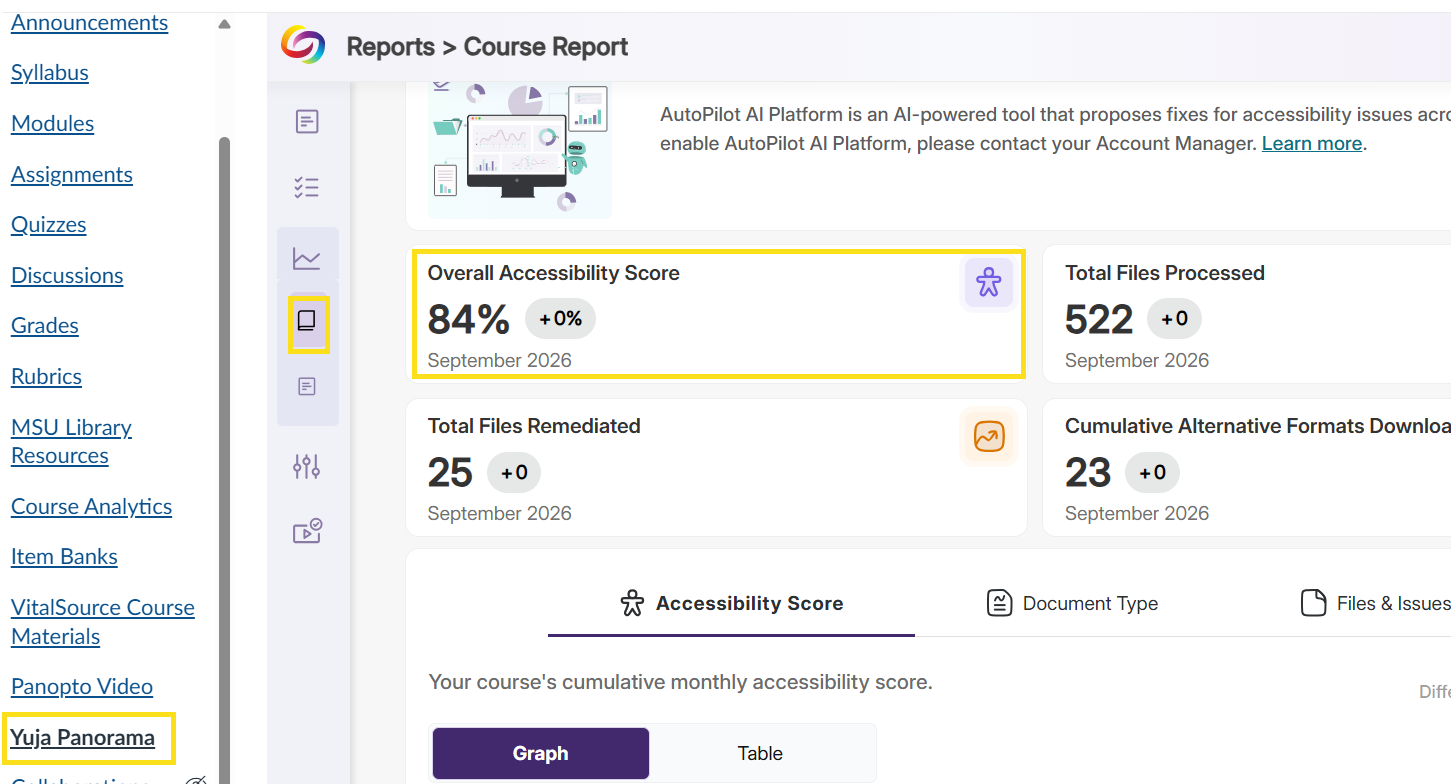
Tip: You may also see an Accessibility Score banner on your Canvas homepage. Select Launch Remediation to open Panorama.
▼ Step 2: Understand Your Report and Make Corrections
- Review your accessibility report. Look at the accessibility scores and issues Panorama has identified in your course materials.
- Learn about Panorama's features and tools. Review the YuJa Panorama Platform Overview to better understand the information in your report and the tools available for making
corrections.
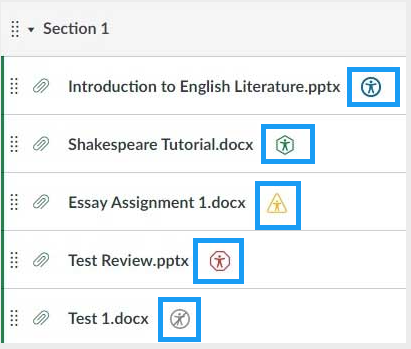
- Make corrections. Use the appropriate tools based on the issues identified:
- Basic issues: Use Panorama's available tools to address issues such as alternative text and certain contrast or formatting problems.
- Structural PDF issues: Download the PDF and make corrections using the Adobe Acrobat Pro desktop application (not the web version). Alternatively, correct the original Word or PowerPoint document and export it as a new accessible PDF.
▼ Step 3: Upload the Corrected File and Check Again
- Save your corrected document or PDF.
- Upload the corrected file to Canvas, replacing the version used in your course.
- Return to Panorama and review the file for remaining accessibility issues after it has been processed.
Remember: Accessibility scores may change while Panorama processes materials. A high score does not guarantee that all accessibility barriers have been resolved.
Guides, Resources, and Support
Explore additional Panorama tutorials, MSU training videos, and accessibility remediation resources.
Need help? Email yuja@montana.edu or submit a support ticket to YuJa.