
MSSE 509 Students:

The MSSE office has updated our master templates and formatting guidelines to better support you in writing your capstone paper.

We now offer four new capstone templates—Action Research, Science Research, Educational Scholarship, and Journal Article—each with the correct chapter titles, improved automated features, and corrected errors and inconsistencies. With these templates, your Table of Contents, List of Figures, and List of Tables will update automatically, and all elements now align with our formatting checklist.

The formatting checklist has also been revised with simplified step-by-step instructions, screenshots, guidance for both PC and Mac users, and tips to avoid common formatting issues.

To use the new templates, you will need to transfer content from the old version of our template you have already been working in. We apologize for this inconvenience, but hope that the updated templates and checklist will make final edits easier and ensure your paper meets formatting and accessibility requirements for publication.

Transferring Text into A New Master Template

The video below shows what the process of transferring text from our old template into our new templates will look like (as well as how new automated features work). If your chapter also has tables or figures, view the next section and video as well. Tables/figures need to be transferred separately. 

Please note the following while watching this video:

  • You will copy and paste your paper one chapter at a time into the new template.

  • For each chapter, copy only the body text—start below the chapter title and the very first heading directly underneath the title. Copy all other text through the end of the chapter (including all other headings)

    • The chapter title and the very first heading directly underneath it are already correctly formatted for you in the new master template
    • If needed, edit the wording of the first heading in the new template so it matches your original paper.


  • Paste your content in the new template using the text-only paste option. Make sure you paste it in before the page break at the end of the chapter.

    • Fix the spacing and reapply heading and caption styles where needed.
  •  

Transferring Tables and Figures into A New Master Template

For chapters that include tables or figures, copy and paste the surrounding text as described above, but do not include the tables or figures.

You will need to insert each table and figure where they belong separately. You can do this in different ways:

  • You can use the keep source formatting paste option to copy and paste each figure/table from your old document into your new one. Make sure you still use the text-only paste option for all surrounding text.
  • Alternatively, you can insert your original table/figure files into the new master template. 

The video below demonstrates how to copy and paste a chapter that has tables. 

Note: Please make sure to view BOTH videos above. Depending on your version of Word, your computer, and other variables, your content may require different formatting adjustments once pasted. Common changes you will need to make are demonstrated in these videos. 


General Tips for Formatting Success

  • Use the downloaded desktop version of Microsoft Word for your capstone paper.
  • Microsoft 365 is available for free  to all MSSE students.
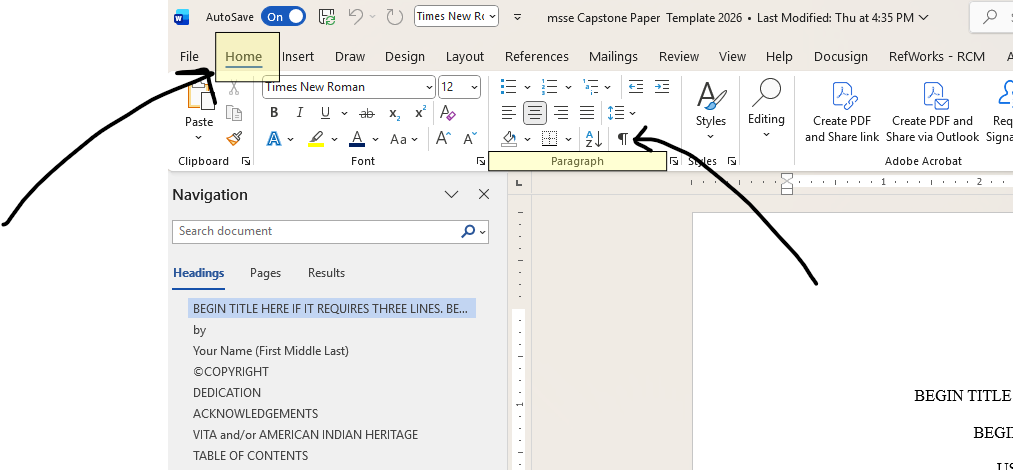
  • Select the Home tab in Microsoft Word

Image showing how to turn on paragraph symbols in your paper. 

  • Click on the paragraph symbol, which looks like this: 
  • This will show you if you have any extra spaces where you shouldn't. 
  • It will also show you the location of section or page breaks. 

Note: The toolbar when using Microsoft Word on Mac computers looks slightly different, but the directions above remain the same. Here is a screenshot of where this symbol is in the toolbar when using a Mac computer:
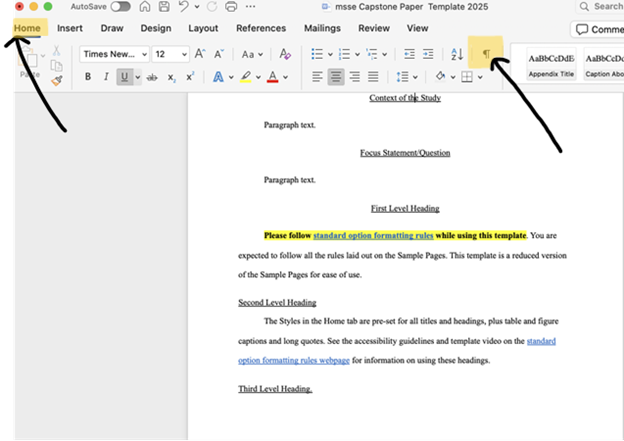
Tracking spacing on a mac

 
  • Your front matter and end matter titles as well as your chapter titles are already formatted for you in the master template. So are certain headings. However, you will need to format additional first, second, and third level headings  in the body of your paper and all table and figure captions yourself.
  • Read directions on how to do this tailored to the type of computer you are using:
  • Select your heading or caption text within your paper. 
  • Go to the Home tab. Find the Styles section of the toolbar. 
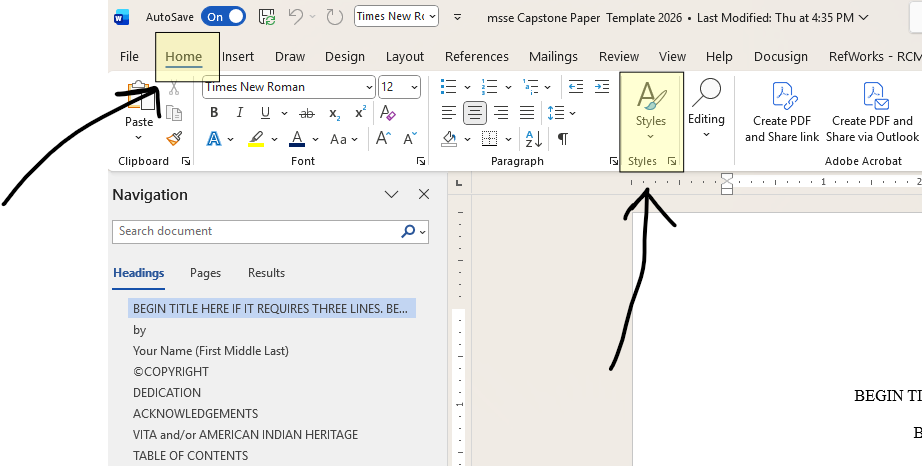
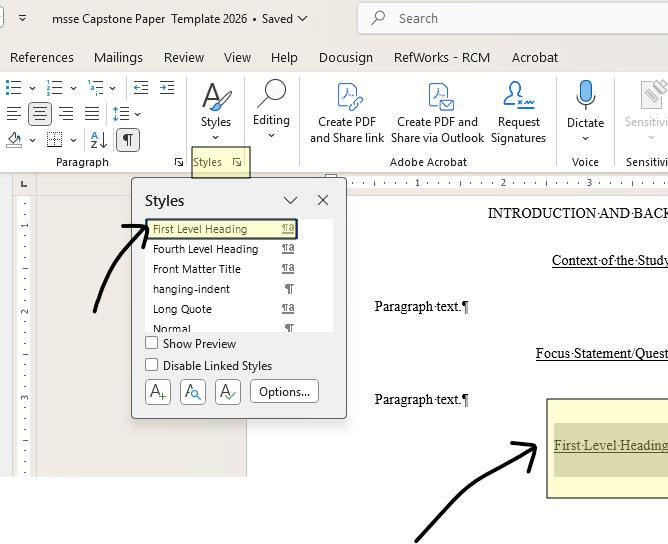
Screenshot of how to find and use preformatted styles.

  • There are two ways to access the Styles menu:
    • Click on the Styles button where you see an A/paintbrush icon for a drop-down menu of style options. Once you select a style, this menu will disappear. 
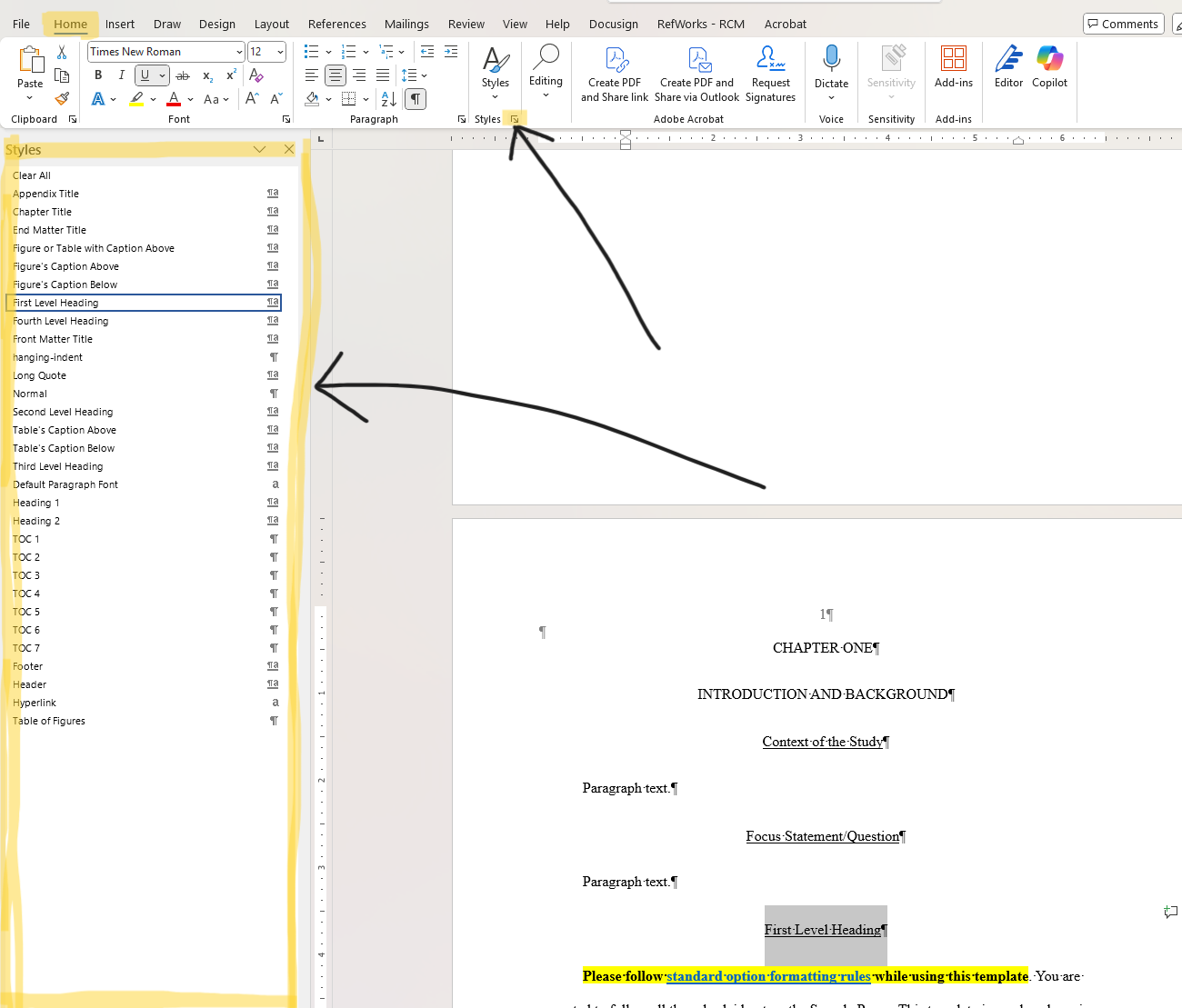
    • Click in the bottom right of the Styles button and the same menu will appear at the left of your document. This menu will not disappear after you select a style unless you close it.  

Screenshots showing what these two options look like:
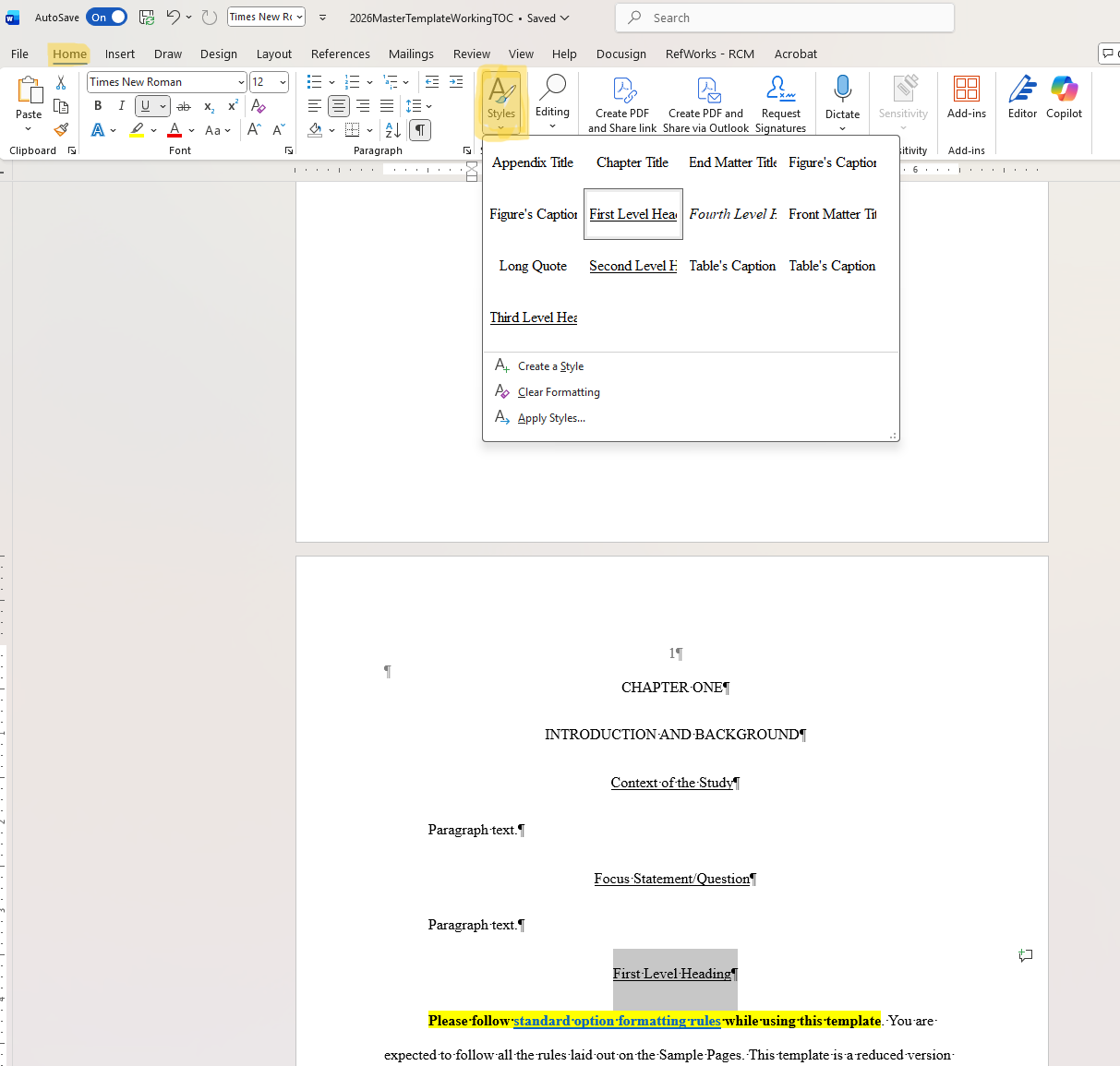
screenshotscreenshot

  • From the styles menu, select the "First Level Heading" style for your first level headings, "Figure's Caption Below" style for captions below your figures, etc.  


  • Select your heading or caption text within your paper. 
  • Select the Home tab.  
  • There are two ways to access the Styles menu:
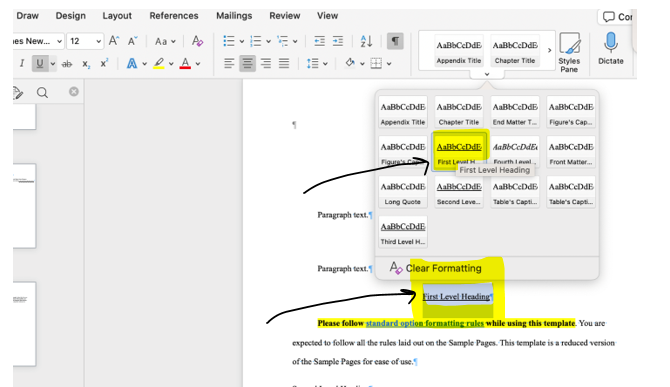
    • Click on the Styles button to access a drop down menu. This will disappear after you select a style.
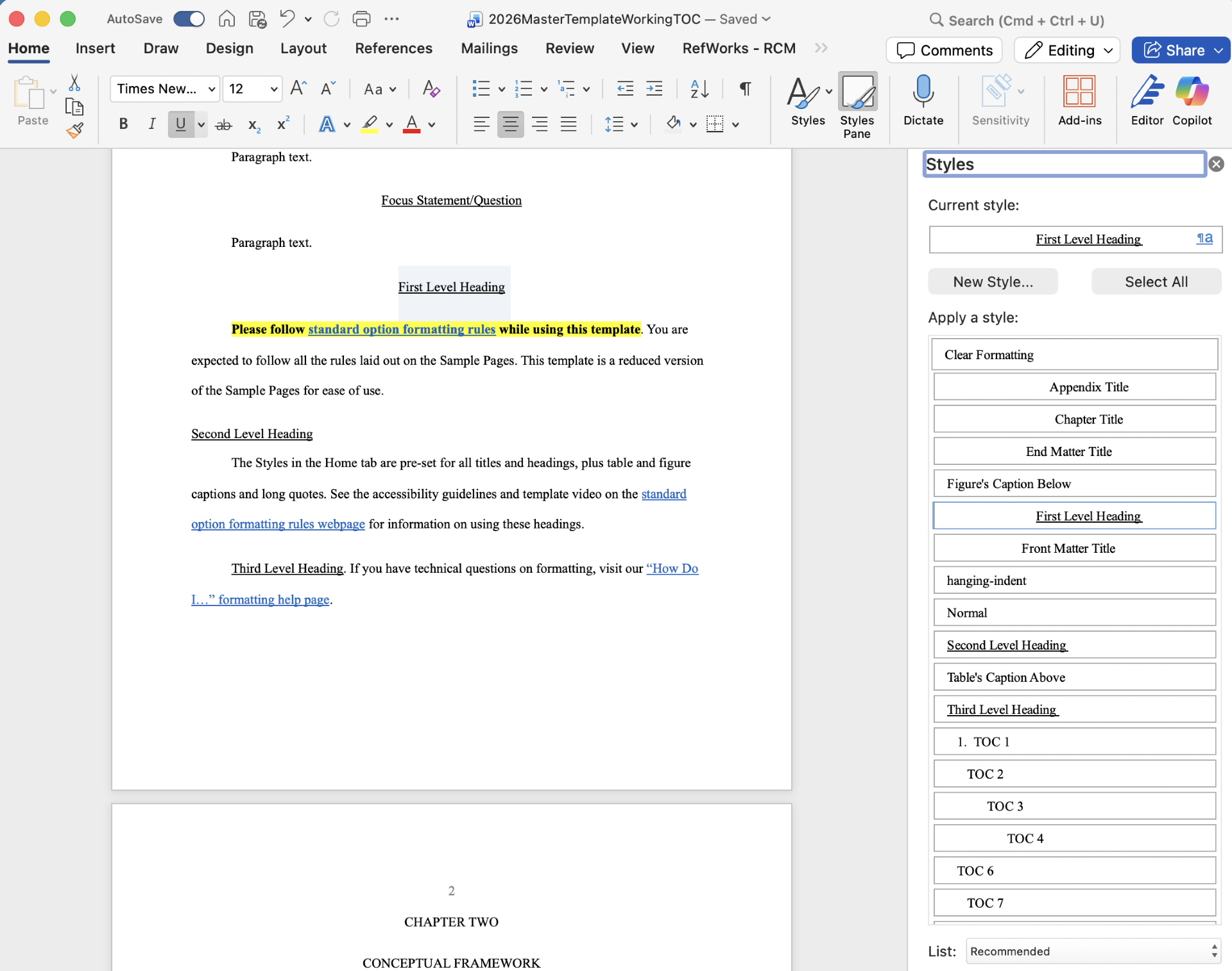
    • Select the Styles Pane button directly next to the Styles button for a menu that appears at  the right of your document. This menu will remain after you select a style until you close it. 

Screenshots showing what these two menu options look like:
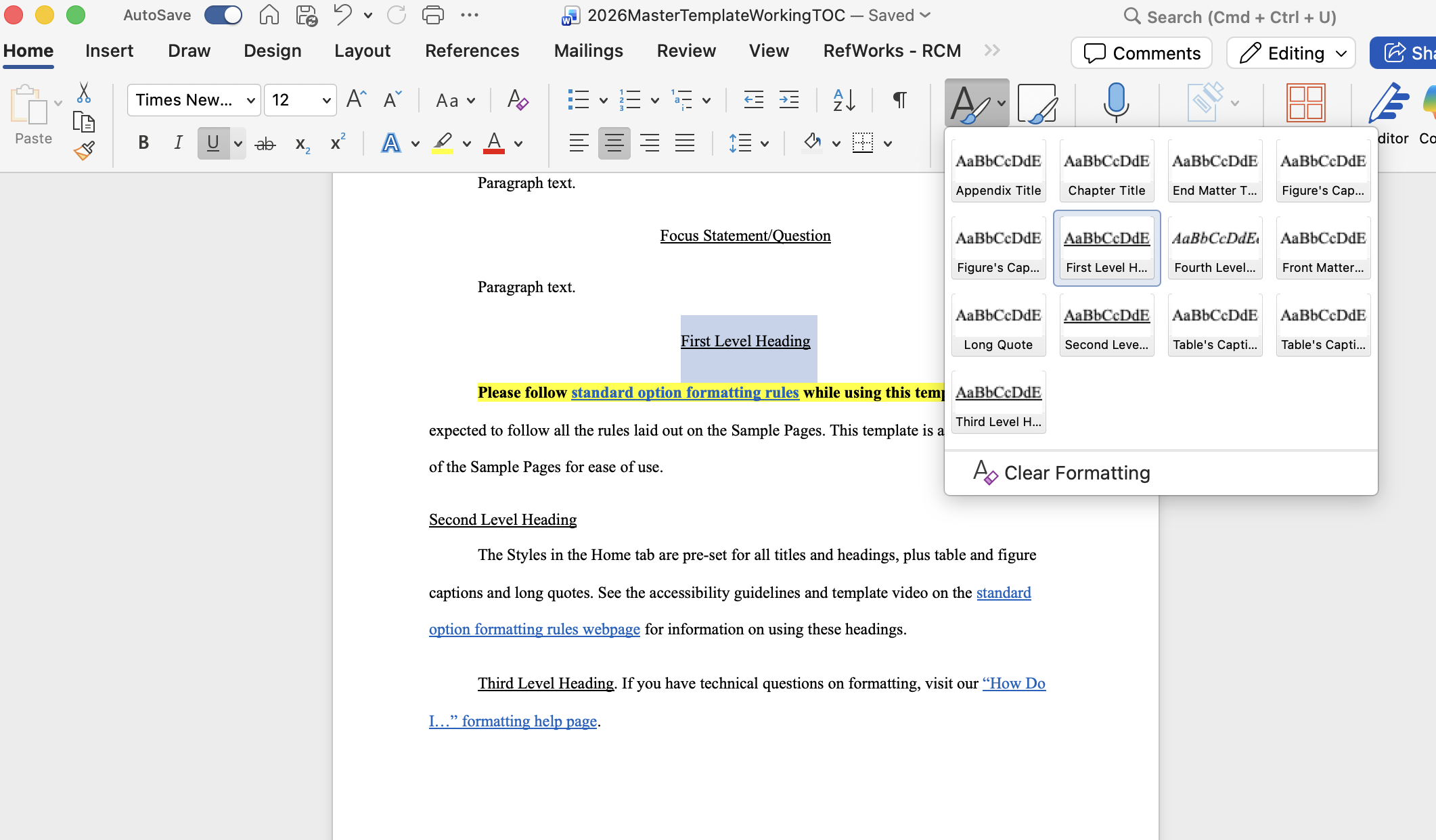
screenshotscreenshot

  • From the styles menu, select the "First Level Heading" style for your first level headings, "Figure's Caption Below" style for captions below your figures, etc.  
  • Using preformatted styles automatically creates the correct spacing for you. 
  • Do not manually create your own headings/captions. This will cause issues as you later edit your paper. Please use the preformatted style options. 

If you need to remove any style formatting, select the "Clear All" or "Clear Formatting" option within the same Styles menu. 

  • Occassionally, a style you assign to a heading or caption will be incorrectly applied to the paragraph text that follows. Selecting that paragraph text and clearing the formatting is how you would fix that. 

When copying text from another document into an MSSE master template, always use the “Keep Text Only” paste option.

  • PC: Copy with Ctrl + C and paste with Ctrl + V. After pasting, click the clipboard icon and select “Keep Text Only”

  • Mac: Copy with Command + C and paste with Command + V. After pasting, click the clipboard icon and choose “Keep Text Only”

Using any other paste option may override the template’s formatting and cause automated features to stop working.

Exception: Figures and tables should be copied and pasted separately from surrounding text using the “Keep Source Formatting” paste option. You can also insert your original table/figure files into the document instead. 

Important:

  • Do not paste over chapter titles or the very first heading below the chapter title. Use the existing title and very first heading below it that are provided in the master template.

  • You may adjust the wording of the very first heading if needed

After pasting your text, apply the appropriate styles, spacing, and other formatting as required.

Here are videos (the first made on a PC and the second made with a Mac) that outline this process. Please watch both videos.

Formatting Checklist

Title page

Checklist:

  • Your title should be in ALL CAPS
  • You should have replaced the line that begins with "Your Name..." with your first, middle, and last name 
  • You should have replaced the line that begins with "Month and Year ETD is accepted..." with just the month and year you submitted your paper (ex. August 2026)
  • Confirm that there is a section break after the paper submission date (This should already be included in the master template) 
    • Section breaks are indicated by two rows of dotted lines
    • Depending on spacing, it may or may not also say "Section Break (Next Page)"
      • Note: To check for a section break, you must have completed the third step at the top of this page in the General Tips for Formatting Success section. This will reveal hidden formatting symbols.
  • The title page should not have page numbers OR Roman numerals

Copyright Page

Checklist:

  • You should have replaced the line that begins with "Your Name..." with your first, middle, and last name. 
  • You should have replaced the word "Year" with the year you complete your paper
  • Confirm that there is a section break after “All Rights Reserved” (This should already be included in the master template)
    • This section break is necessary for the Roman numerals that begin on the next pages
  • The copyright page should not have page numbers OR Roman numerals

Dedication, Acknowledgement, and VITA and/or American Indian Heritage Pages

You can include:

  • A dedication page AND an acknowledgements page AND a VITA and/or American Indian Heritage page
  • Some of these pages
  • None of these pages
  • These pages pages should begin your use of Roman numerals
    • This change to Roman numerals has already been set up for you in the master template
    • All you need to do is fully delete any pages you are NOT using (the title, paragraph text, and page break)  
      • Do NOT forget to also delete the page break of the page you do not want. This will make it so that the next page's content will automatically move up to replace the page you deleted 
  • The Roman numeral for the first one of these pages that you include in your paper should be ii 
    • You will not have an i page in your capstone paper  
  • Your Roman numerals will be different depending on if you include all these pages, only some, or none

Checklist for each of these pages:

  • For the dedication page:
    • Textshould be left aligned, single spaced, and no more than one page in length
    • The first line of each paragraph should be indented. Do not add additional space between paragraphs
    • Confirm that there is a page break at the end (this should already be included in the master template) 
  • For the acknowledgements page:
    • Text  should be left aligned, double spaced, and no more than one page in length
    • The first line of each paragraph should be indented. Do not add additional space between paragraphs
    • Confirm that there is a page break at the end (this should already be included in the master template)
  • For the VITA and/or American Indian Heritage page(s):
    • The text on the VITA page should be left aligned, single spaced, and no more than one page in length
    • The first line of each paragraph should be indented. Do not add additional space between paragraphs
    • Confirm that there is a page break at the end of the page   
    • American Indian Heritage information can be included as part of the VITA page or as its own page with the same formatting as the VITA page


Table of Contents

In the MSSE Master Template, the Table of Contents is automatic.

Because of this, you will do the following:

  • You will skip the Table of Contents when first writing your paper
  • Return to it only after several chapters of your paper have been written and correctly formatted 
  • The Table of Contents will only work if you have correctly applied title/heading styles where they are needed 
  • After you have formatted several chapters of your paper, you can update your Table of Contents (this will sync it with your paper)
  • Each time you add content or edit your paper, you should update your Table of Contents so it reflects these changes

Follow the steps below to update your Table of Contents:

  • Access the update menu:
    • On a PC: Select the Table of Contents content so it is highlighted and then right click.
    • On a Mac: Press the Ctrl key and then click in your Table of Contents
  • Click the "Update Field" option in the drop-down menu that appears.
  • Select "Update entire table" 
  • Your Table of Contents should now include all your chapters and headings and their page numbers
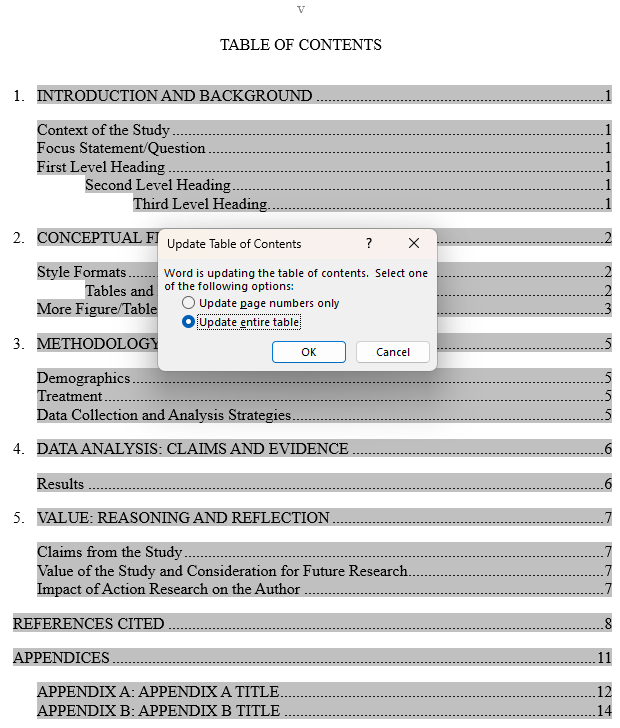
  • See below for a screenshot of this process

Note: Sometimes, on a Mac, the Table of Contents will update immediately after you click the "Update Field" option. Other times, you will need to follow the rest of the directions above and select to update the entire table. Both of these work.

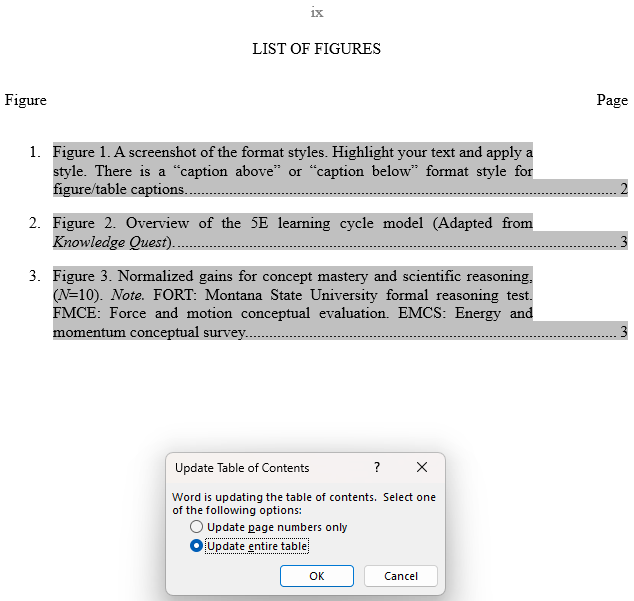
Photo showing how updating the table of contents looks

  • Use the Table of Contents as a quick way to verify your formatting—what appears (or does not appear) often indicates whether styles have been applied correctly
    • If your Table of Contents includes text under headings that should not be there, check the styles in your paper. This usually means a heading style was mistakenly applied to regular paragraph text.
    • If a heading is missing from the Table of Contents, return to your paper and check that the correct heading style has been applied.


  • Confirm that there is a page break at the end of the page.
  • This page should include Roman numeral page numbers. 

Important: Does your Table of Contents extend beyond one page? Click below for information on what to do next.

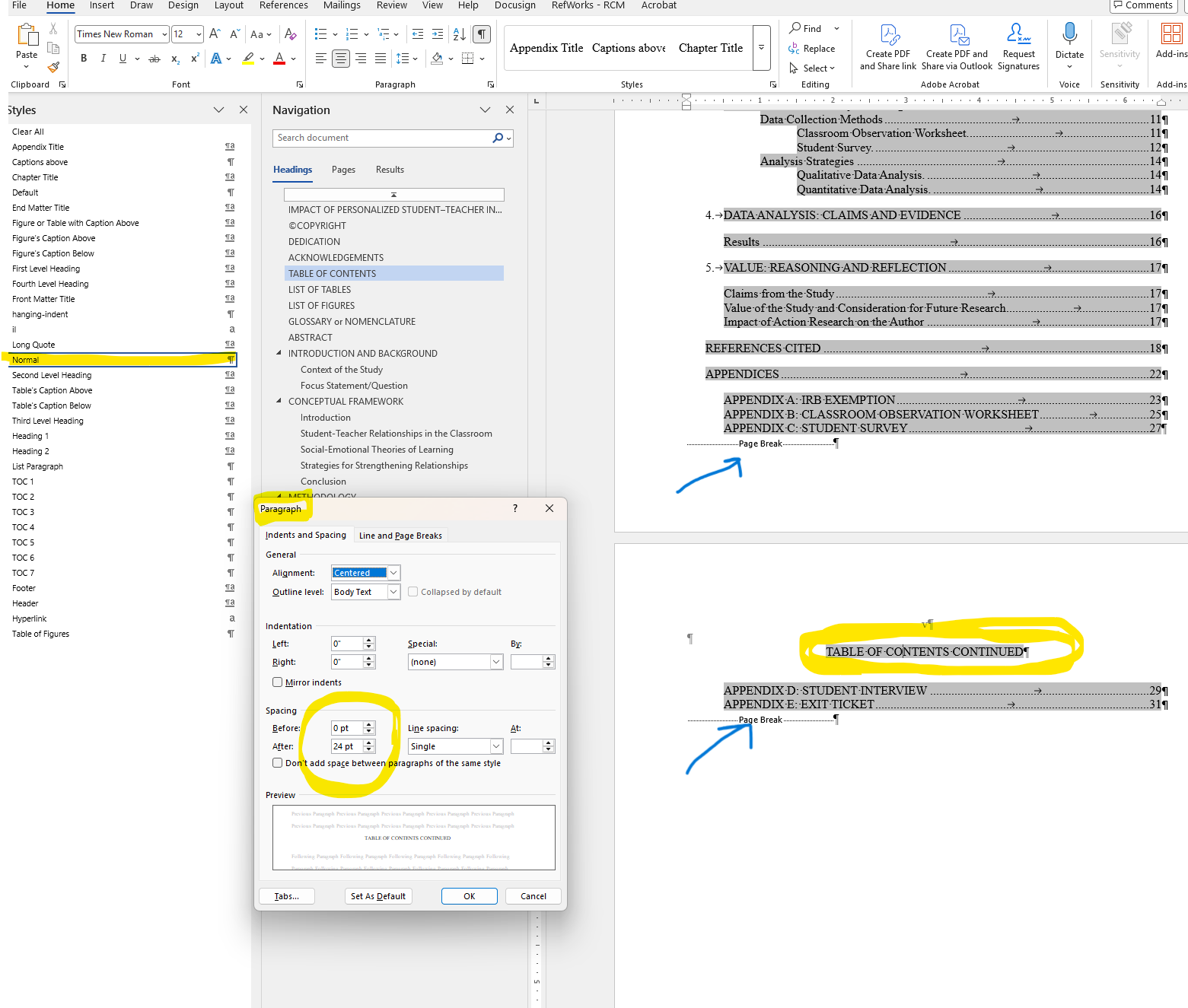
If you find that your Table of Contents extends onto a second page, you will need to do the following:

  • Copy the "Table of Contents Continued" title found in the master template and paste it so it's at the top of this second page
  • Add a page break at the bottom of the first Table of Contents page (there should also be one at the bottom of the second page). 
  • Delete the original Table of Contents Continued page so the List of Tables replaces it.

Here's a video showing these steps:

List of Tables

In the MSSE Master Template, the List of Tables is also automatic.

Because of this, you will do the following:

  • You will skip the List of Tables when you are first writing your paper
  • Return to it only after several chapters of your paper have been written and correctly formatted 
  • The List of Tables will only work if you use the correct table caption styles throughout your paper.
  • After you have formatted several chapters of your paper, you can update your List of Tables (this will sync it with your paper)
  • Each time you add content or edit your paper, you should update your List of Tables so it reflects these changes
    • Even if you do not change your tables, other edits can change the page number a table is on, requiring this to be updated
  • See below for steps to update your List of Tables:
  • Access the update menu:
    • On a PC: Select the List of Tables content so it is highlighted. Right click.
    • On a Mac: Press the Ctrl key and then click in the List of Figures.
  • Click the "Update Field" option in the drop-down menu that appears.
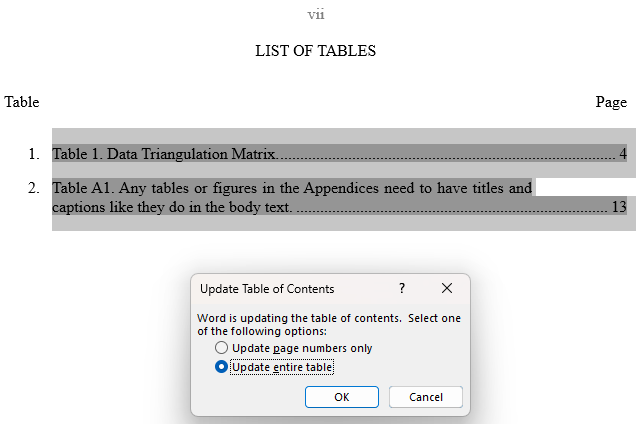
  • Select "Update entire table" 
  • All of your tables should now appear/update.
  • See below for a screenshot of this process.

Photo showing how updating list of tables looks

Use the List of Tables as a quick way to verify your formatting—what appears (or does not appear) often indicates whether styles have been applied correctly

  • If your List of Tables includes text that should not be there along with a table’s information, check the styles in your paper. This usually means a caption style was mistakenly applied to regular paragraph text
  • If a table is missing from the List of Tables, return to your paper and confirm that the correct caption style has been applied to the table's caption


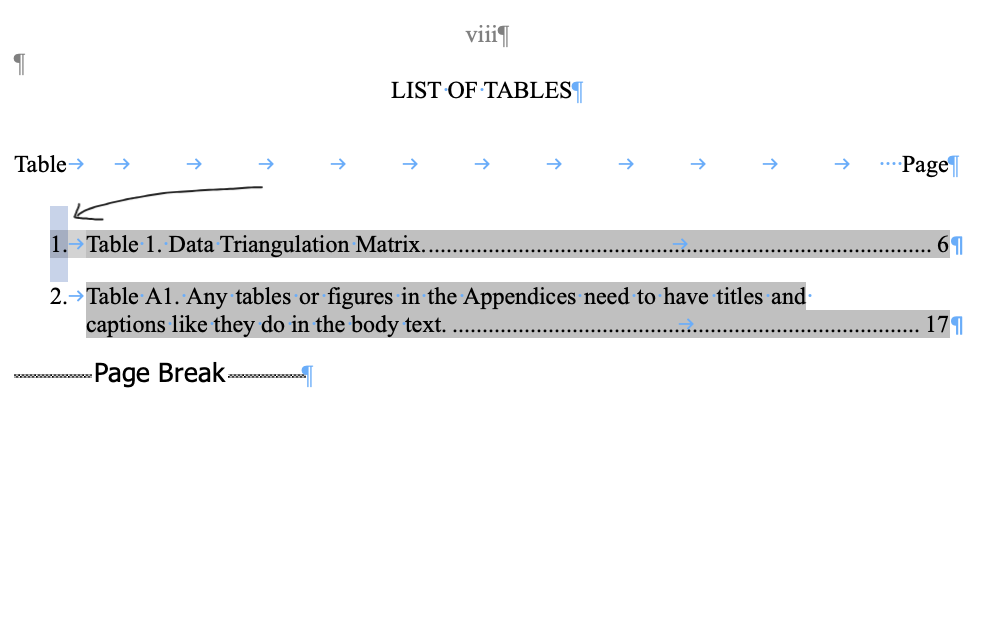
Sometimes, the table numbers at the left of your List of Tables will become incorrect after an update and start at a number other than 1. To reset these numbers, do the following:

On a PC:

  • Right click on the first table listed in your List of Tables
  • Select the numbering option from the menu that appears
  • Select "Set Numbering Value"
  • Make sure the number in the "Set Value to" box is a "1"
  • Here is a video outlining this process:

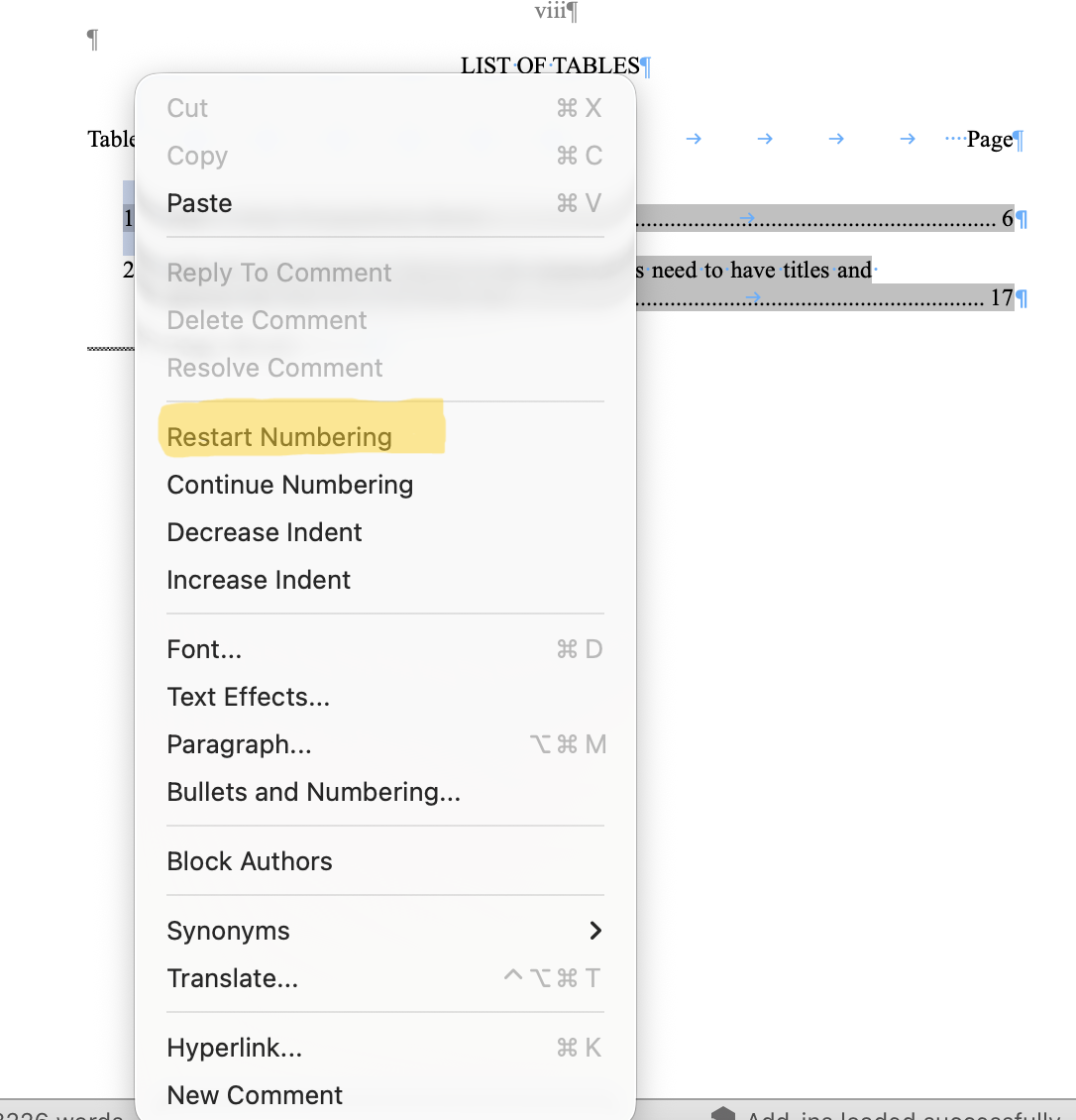
On a Mac:

  • Press the Ctrl key and then click on the first table's number in your List of Tables
  • In the drop-down menu that appears, select "Restart Numbering"

Screenshots of this process:

screenshot renumberingscreenshot renumbering

  • This page should include Roman numeral page numbers
  • Check that there is a page break at the end of the page

List of Figures

In the MSSE Master Template, the List of Figures is also automatic.

Because of this, you will do the following:

  • You will skip the List of Figures when you first writing your paper.
  • Return to it only after several chapters of your paper have been written and correctly formatted 
  • The List of Figures will only work if you use the correct figure caption styles throughout your paper.
  • After you have formatted several chapters of your paper, you can update your List of Figures (this will sync it with your paper)
  • Each time you add content or edit your paper, you should update your List of Figures so it reflects these changes
    • Even if you do not change your figures, other edits can change the page number a figure is on, requiring this to be updated
  • See below for steps to update your List of Figures: 
  • Access the update menu:
    • On a PC: Select the List of Figures content so it is highlighted. Right click
    • On a Mac: Press the Ctrl key and then click.
  • Click the "Update Field" option in the drop-down menu that appears.
  • Select "Update entire table" 
  • All of your figures should now appear/update.
  • See below for a screenshot of this process.

Photo showing how updating list of figures looks

  • Use the List of Figures as a quick way to verify your formatting—what appears (or does not appear) often indicates whether styles have been applied correctly
    • If your List of Figures includes text that should not be there along with a figure’s information, check the styles in your paper. This usually means a caption style was mistakenly applied to regular paragraph text
    • If a figure is missing from the List of Figures, return to your paper and confirm that the correct caption style has been applied to the figure's caption

Sometimes, the numbers at the left in your List of Figures will be incorrect after an update and start at a number other than 1. To reset these, follow the same steps as given for this issue in the List of Tables section above.

  • This page should include Roman numeral page numbers.
  • There should be a page break at the end of the page.

Glossary or Nomenclature

Checklist:

  • Delete this page if you don't need it (you will need to delete the title, text, and page break). 
  • Your glossary or nomenclature page should be single spaced with a double space between entries.
  • This page should include Roman numeral page numbers.
  • Confirm that there is a page break at the end of the page.

Abstract

Checklist:

  • Your abstract paragraph should be single spaced and no more than 350 words.
  • The first line of your paragraph should start with one full indent.
  • The abstract must contain the following elements: (1) statement of the problem, (2) procedure or methods, (3) results, and (4) conclusions.
  • Confirm that there's a section break at the end of the page.
  • This page still uses Roman numeral page numbers. New page numbers (1, 2, 3, etc.) begin on the next page with the first chapter.

Chapters

Note: You’ll want to reference the MSSE Capstone Paper Outlines below as you build this section. Chapters will be different depending on the project type you choose.

Checklist:

  • In the MSSE master templates, chapter titles are already formatted for you on the first page for each chapter. There are also examples for how you should format your different headings and captions.
  • However, you will have to format additional headings and captions in the body of your paper on your own.
  • In this and the following sections, you will find directions on how to apply each type of heading formatting as well as how to format your table and figure captions. 

For each of your first level headings, use the "First Level Heading" style option.

  • If you use the "First Level Heading" style, it will set correct spacing as well as center and underline your heading for you.
  • All first level headings should be Title Case. Capitalize the first letter of each word in the heading except articles, conjunctions, and prepositions.
  • Below is a screenshot showing how you would apply "First Level Heading" style formatting to your first level heading text. 
    • First, select your first level heading text.
    • On the Home tab, click on the "First Level Heading" style option from the Styles menu.

Screenshot of what this looks like on a PC computer:

Image of how to apply formatting using the style menu.

Screenshot of what this looks like on a Mac computer:

applying level 1 style on a Mac

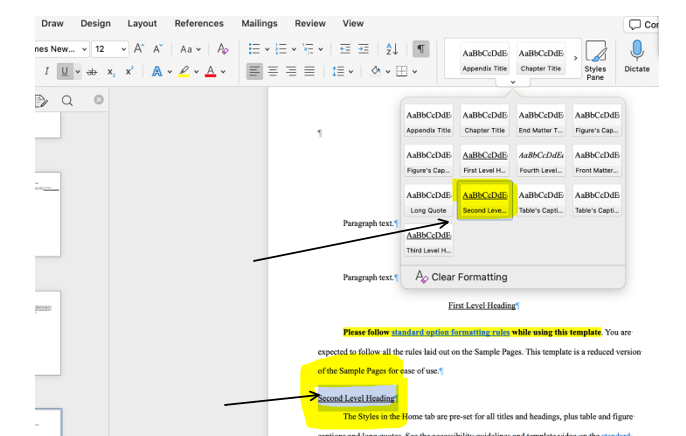
For each of your second level headings, use the "Second Level Heading" style option.

  • If you use the "Second Level Heading" style, it will set correct spacing, move your heading flush left, and underline it.
  • You second level heading should be in Title Case. Capitalize the first letter of each word in the heading except articles, conjunctions, and prepositions.
    • If your second level heading is too long for one line, it should automatically wrap to the next line, single spaced. Make each line of a multi-line heading as equal as possible and only underline the bottom line. 
  • Below is a screenshot showing how you would apply "Second Level Heading" style formatting to your second level heading text. 
    • First, select your second level heading text.
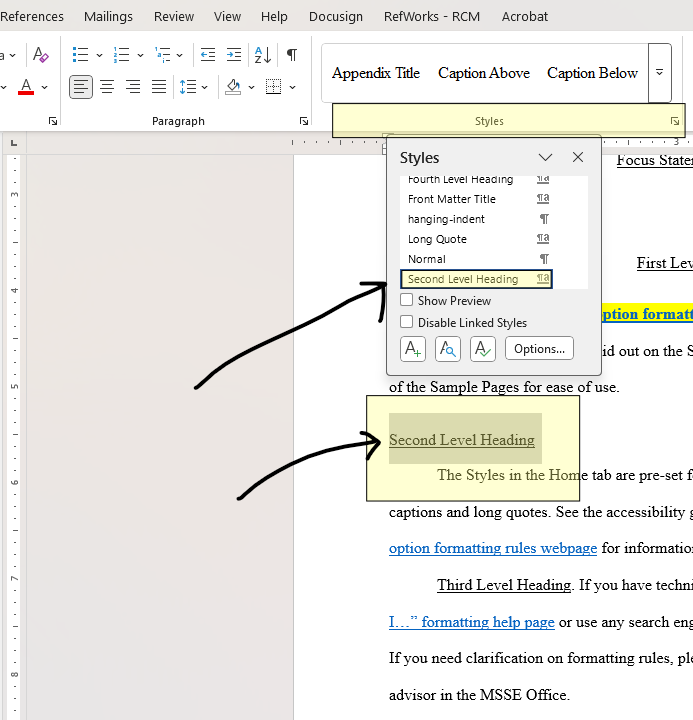
    • On the Home tab, click on the "Second Level Heading" style option from the Styles menu.

Screenshot of what this looks like on a PC computer:

Image showing the selection of the heading 2 style formatting.

Screenshot of what this looks like on a Mac computer:

heading 2 style on a mac

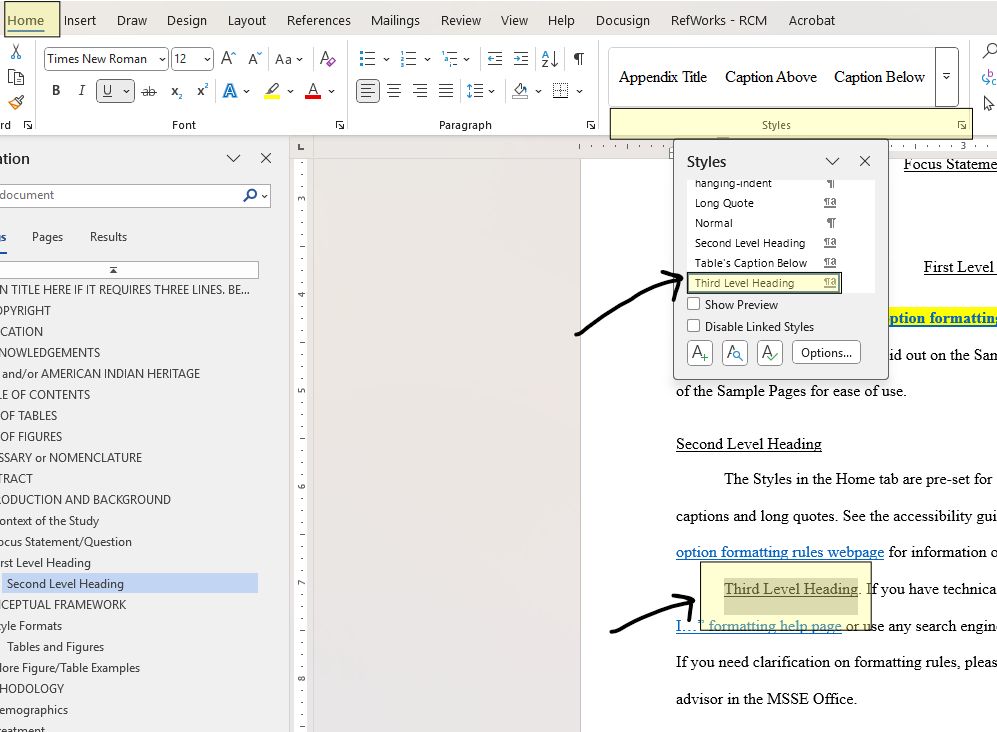
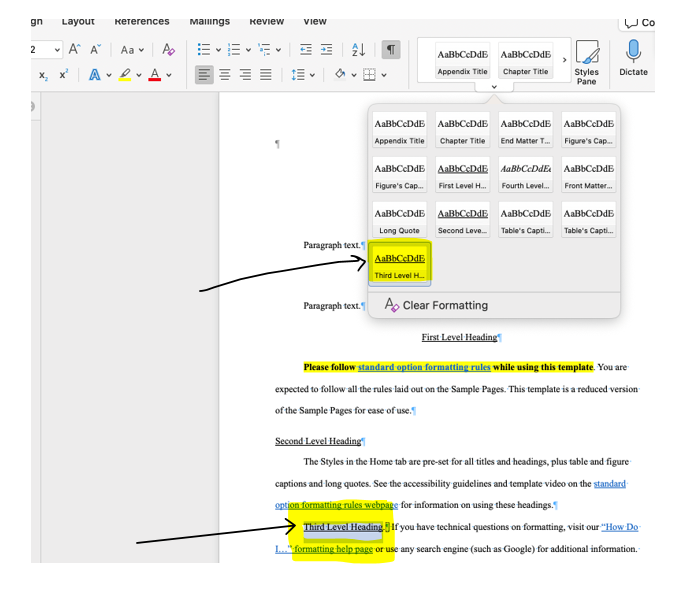
If you have third level headings, use the "Third Level Heading" style option.

  • Third level headings are trickier than other level headings.
  • All third level headings should be one full indent, underlined, and have a period at the end. You will have to add the indent yourself.
  • All text immediately starts after the period on the same line as the third level heading.
  • Below is a screenshot showing how you would apply "Third Level Heading" style formatting to your text. 
    • First, select your third level heading text.
    • On the Home tab, click on the "Third Level Heading" style option from the Styles menu.
    • Add an indent.
    • Make sure the text following your third level heading begins directly after the period. 

Screenshot of what this looks like on a PC computer:

Image showing the selection of the heading 3 style formatting.

Screenshot of what this looks like on a Mac computer:

heading level 3 formatting on a mac

 The chapters of your paper start your use of Arabic numbers (1, 2, 3…).

  • Make sure there are page breaks at the end of EVERY chapter and NO page breaks within ANY chapter.
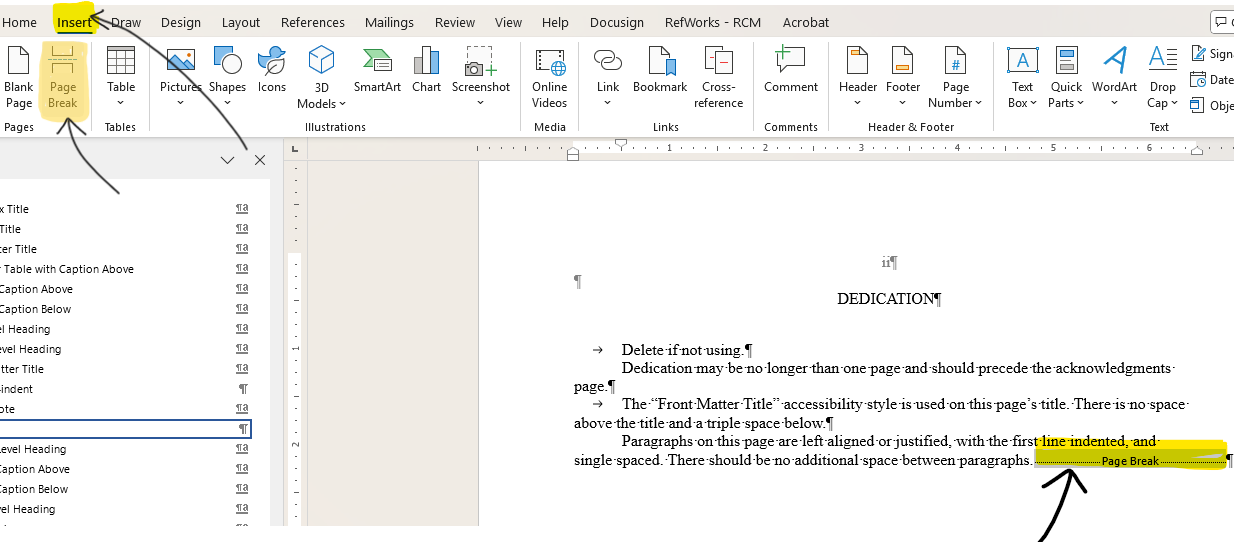
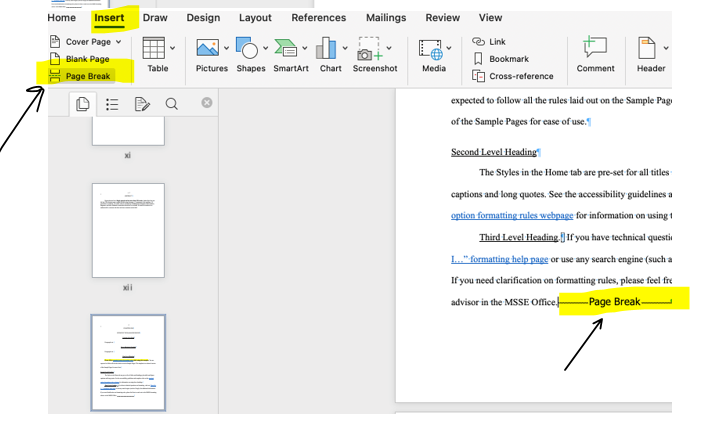
    • Page breaks have already been added for you for each chapter in the master template. However, if for some reason you need to add a page break that was accidentally deleted, you will need to follow the steps below. 
  • Click on the location of your paper where you want to add the break 
  • Next, go to the Insert tab
  • Select Page Break from the toolbar

Screenshot of what this looks like on a PC computer:

Showing how to insert a page break

Screenshot of what this looks like on a Mac computer:

add page break on a mac

Note: Headings should not sit at the bottom of a page without any text below them. Move headings to the next page if text does not fit underneath. 

MSSE Capstone Paper Outlines

Action Research Paper Chapter Outline

  • Chapter 1 = Introduction and Background
    • First level heading: Context of the Study
    • First level heading: Focus Statement/Question
  • Chapter 2 = Conceptual Framework
    • First level heading: Up to 5-6 headings based on the theme titles from the literature
  • Chapter 3 = Methodology
    • First level heading: Demographics
    • First level heading: Treatment
    • First level heading: Data Collection and Analysis Strategies
  • Chapter 4 = Data Analysis: Claims and Evidence
    • First level heading: Results
  • Chapter 5 = Value: Reasoning and Reflection
    • First level heading: Claims from the Study
    • First level heading: Value of the Study and Consideration for Future Research
    • First level heading: Impact of Action Research on the Author

Science Research Paper Chapter Outline

  • Chapter 1 = Introduction and Background
  • Chapter 2 = Conceptual Framework
  • Chapter 3 = Methodology
  • Chapter 4 = Data Analysis
  • Chapter 5 = Results; and
  • Chapter 6 = Value: Reasoning and Reflection.

Educational Scholarship Paper Chapter Outline

  • Chapter 1 = Introduction and Background
  • Chapter 2 = Conceptual Framework
  • Chapter 3 = Instructional Strategies/Resources
  • Chapter 4 = Value: Reasoning and Reflection 

Journal Article Chapter Outline

  • Chapter 1 = Introduction and Background
  • Chapter 2 = Article (title will be the same as your journal article title)
  • Chapter 3 = Value: Reasoning and Reflection 

Block Quotes

Video Explanation

Direct quotes of four lines or more must be single-spaced and “blocked.” This means the text is indented on both sides and is justified.

To do this, follow these steps:

  • Select your four or more lines of text
  • Go to your Styles options and select and apply "Long Quote" style formatting
  • This will automatically format your block quote text for you

Figure Captions

Sample Size:

  • Use N when you are talking about your entire sample. Use n when you are talking about a subset of your sample.

Note: N and n are always itallicized.

Checklist:

  • Make sure that your figures are in correct numerical order throughout the paper. 
  • Here is an example of what a figure caption should look like:
    • Figure 3. A screenshot of the format styles, (N=19)
      • Please do not italicize Figure 3.
  • Your figure caption should appear directly under or above the figure without any extra spacing.
  • Be consistent with which caption style you use throughout your paper (either above or below).
    • To put captions below, use the "Figure's Caption Below" style.
    • To put captions above, use the "Figure's Caption Above" style.
      • Sometimes, extra spacing will appear when using caption styles. If this happens, you will have to adjust it.
  • There should be triple spacing to separate figures and their captions from the surrounding paragraph text.
    • There should also be triple spacing between figures that come right after one another. 
      • If you are having difficulty with triple spacing, try to visualize having two blank lines of text separating your paragraph text from figures and their captions. Your curser is approximately the size of one line of text. This video may help you visualize this:


  • Make sure your figures are within the page margins. 

Table Captions

Sample Size:

  • Use N when you are talking about your entire sample. Use n when you are talking about a subset of your sample.

Note: N and n are always itallicized.

Checklist:

  • Make sure that your tables are in correct numerical order within the paper. 
  • Here is an example of what a table caption should look like:
    • Table 1. Physical characteristics and trout of watersheds sampled in the headwaters of the Colorado River, (n=11).
  • Your table caption should appear directly under or above the figure without any extra spacing.
  • Be consistent with which caption style you use throughout your paper (either above or below).
    • To put captions above, use the "Table's Caption Above" style. 
    • To put captions below, use the "Table's Caption Below" style.
      • Sometimes, extra spacing will appear when using caption styles. If this happens, you will have to adjust it. 
  • There should be triple spacing to separate tables and their captions from surrounding paragraph text. 
    • There should also be triple spacing between tables that come right after one another. 
  • Do not include bold text in any of your tables.
  • Make sure you use Sentence Case text except when referring to names, places, or instruments in your tables.
  • If your table spans multiple pages, do not divide it between the pages in the middle of a cell. Make sure the last row is completely on the previous page before continuing with the following row on the next page. 

References Cited

Resources:

Checklist:

  • The title REFERENCES CITED should be centered and appear almost in the middle of the page (this has already been done for you in the MSSE master templates).
  • There should be a page break after REFERENCES CITED (again, this has been added for you).
  • Start all references on the next page. You will not include a title at the top of this page.
  • References should be single spaced with a double space between references.
  • If a reference goes on to the second line, a word hanging indentation should be present on the second line.
    • You’ll do this by putting your cursor in front of the first word on the second line and hittingcontrol+t or command+ton your keyboard.
  • References should be in alphabetical order.

Appendices

Checklist:

  • The word APPENDICES should be centered and appear in the middle of the page (this has already been done for you in the master template).
  • Check that there is a page break after the word APPENDICES (again, this has already have been added for you).
  • On the next page, "APPENDIX A: APPENDIX A TITLE" should appear almost in the middle of the page. 
  • You should have replaced the text "APPENDIX A TITLE"  with the title of your first appendix.
  • Check that there is a page break after the appendix title.
  • The next page(s) should contain the content for Appendix A.
  • Make sure there's a page break after the Appendix A content.
  • You’ll follow the same steps for all appendices.

Note: Within your paper, all appendices must appear in the correct alphabetical order. If you have only one appendix, formatting rules are slightly different. See the MSSE master template for further details. 

Narrative and Parenthetical In-Text Citations

APA 7 Resources to help in this section:

In-text citations can be naturally integrated into a sentence or placed in parenthesis. In the first case, they are referred to as narrative in-text citations. In the second, they are called parenthetical in-text citations.  

  • Narrative: Walker(2007) found a link between student engagement and academic achievement.
  • Parenthetical: There is a link between student engagement and academic achievement(Walker, 2007).

Examples of In-text Citations:

  • One Author
    • First narrative in-text citation: Walker (2007)
    • First and subsequent parenthetical citations: (Walker, 2007)
  • Two Authors
    • First narrative in-text citation: Walker and Allen (2004)
    • First and subsequent parenthetical citations: (Walker & Allen, 2004)
  • Three or More Authors
    • First and subsequent narrative in-text citations: Bradley et al. (1999)
    • First  and subsequent parenthetical citations: (Bradley et al., 1999)
  • If you need further support with in-text citations, please check out this APA in-text citation overview. 

Abbreviations

Video Explanation


Checklist:

  • Abbreviations are introduced in each new chapter.
  • Abbreviations should match the actual abbreviation for the words. 

Accessibility Check

Video Explanation

Resources:

  • Accessibility for Electronic Theses and Dissertations at MSU (Video, Reading)
  • Adding alternative text to figures and images (Video)

Checklist:

  • In Word: Click the "Review" tab. Then select "Check Accessibility" button from the toolbar.
    • Address any errors or warnings that come up.
  • In Adobe Acrobat: Choose "All Tools" > "Prepare for Accessibility."
    • You may have to click "View more" to see this option if it isn't already included in the list of tools. 
  • Then in the secondary toolbar, click "Check for accessibility."
  • Choose "Start Checking."
    • Fix any failed items that come up.
      • You can right click each item and choose "Explain" for more information. 
      • For missing alt-text, you can select the "Add alternate text" tool after running the accessibility check.
        • This tool is located below the "Check for accessibility" tool.
  • Note: The above Acrobat instructions may not work on a Mac computer. Reach out to gradformatting@montana.edu with questions regarding this. 

Focus Question/Focus Statement

Video Explanation

Template:

  • My focus question was, [Insert focus question]; no quotation marks
  • Indented – My sub-questions include the following:
  • 1. [Insert sub-question]
  • 2. [Insert sub-question]


Focus Question

            My focus question was, How does instruction with the CER framewhork in the English classroom impact the writing of well-reasoned arguments?

            My sub-questions include the following:

        1. Does the use of CERT framework in English class impact the frequency of well-reasoned, evidence-based claims in science and                      other subject areas?

        2. Does use of the CER framework improve student confidence in answering short answer questions?


For any comments or concerns about this page, please email MSSE program coordinator Pilar Martland at pilar.martland@montana.edu.  

edit


Master of Science in Science Education
Montana State University
P.O. Box 172805
Bozeman, MT 59717-2805

Tel: (406) 994-7485
Fax: (406) 994-5575
E-mail: msse@montana.edu
Location: 451 Reid Hall

Interim Director:
Dr. Mary Alice Carlson
 

Find us on Facebook

Donate Now