

Discussion Checkpoints

Discussion Checkpoints in Canvas
Discussion Checkpoints in Canvas allow instructors to create separate deadlines and point values for a student’s initial discussion post and their required peer replies. This helps encourage ongoing participation throughout the week while making grading and progress tracking easier for both instructors and students.
With checkpoints enabled, instructors can:
- Set separate due dates for initial posts and replies
- Assign different point values for posts and replies
- Track participation more easily in SpeedGrader
- Encourage students to engage with classmates earlier and more consistently
- Help students stay organized through Canvas Calendar and To-Do reminders
Note: Discussion Checkpoints can only be used with graded discussions.
How to Set Up Discussion Checkpoints:
-
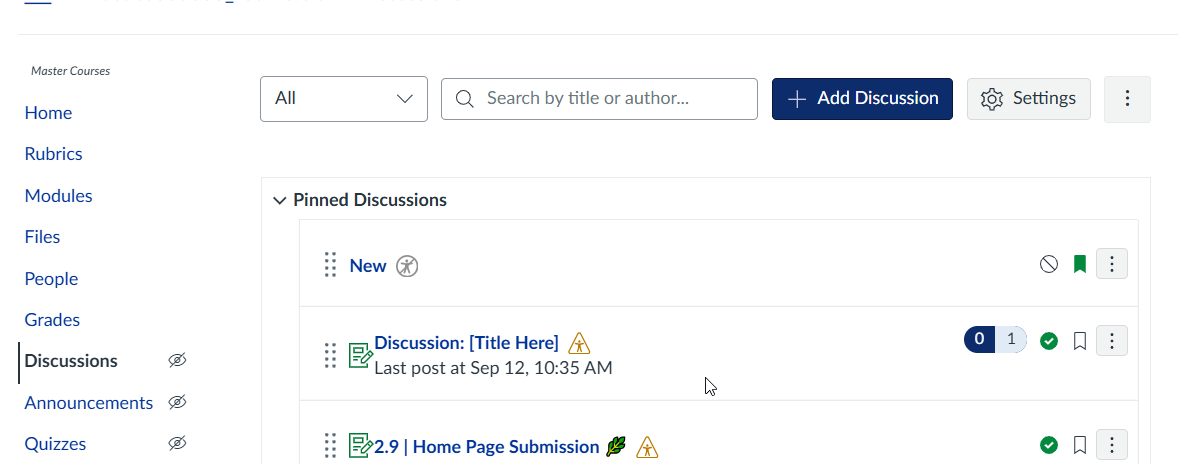
Open Discussions in your Canvas course navigation.
-
Click + Add Discussion in the top-right corner.
-
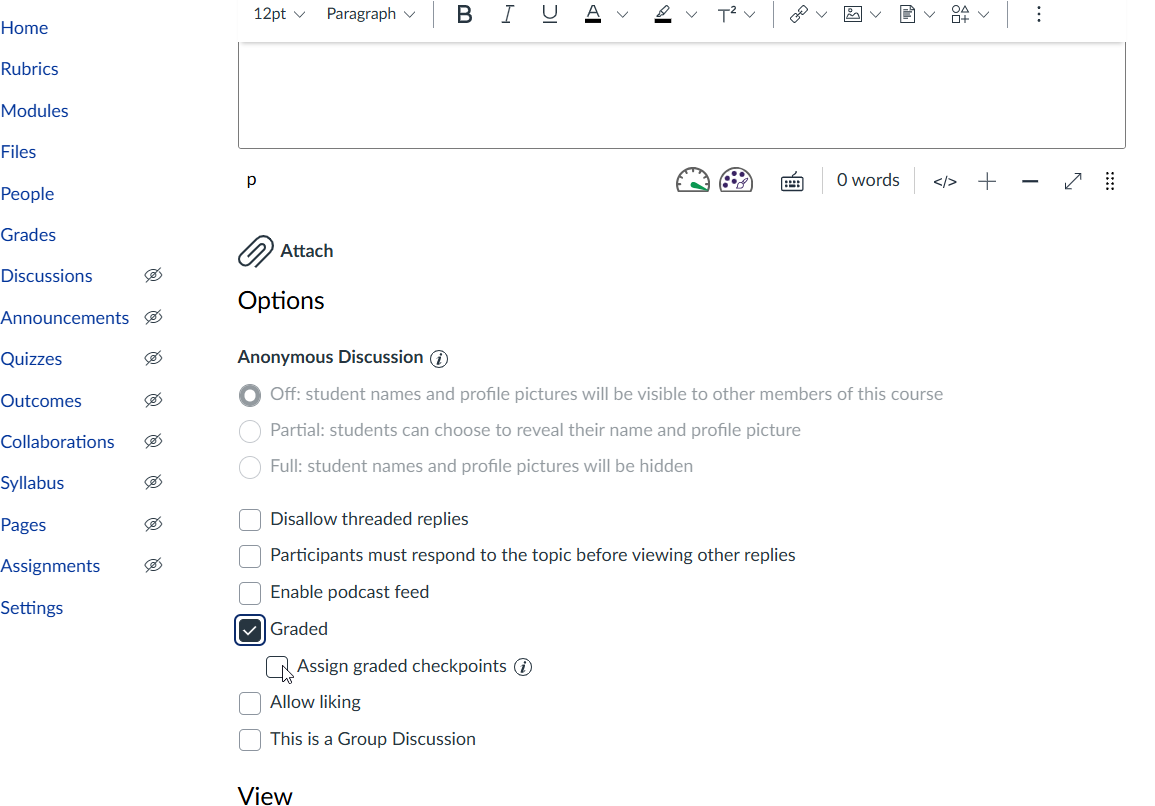
Under Options, select Graded.
-
Choose Assign graded checkpoints.
-
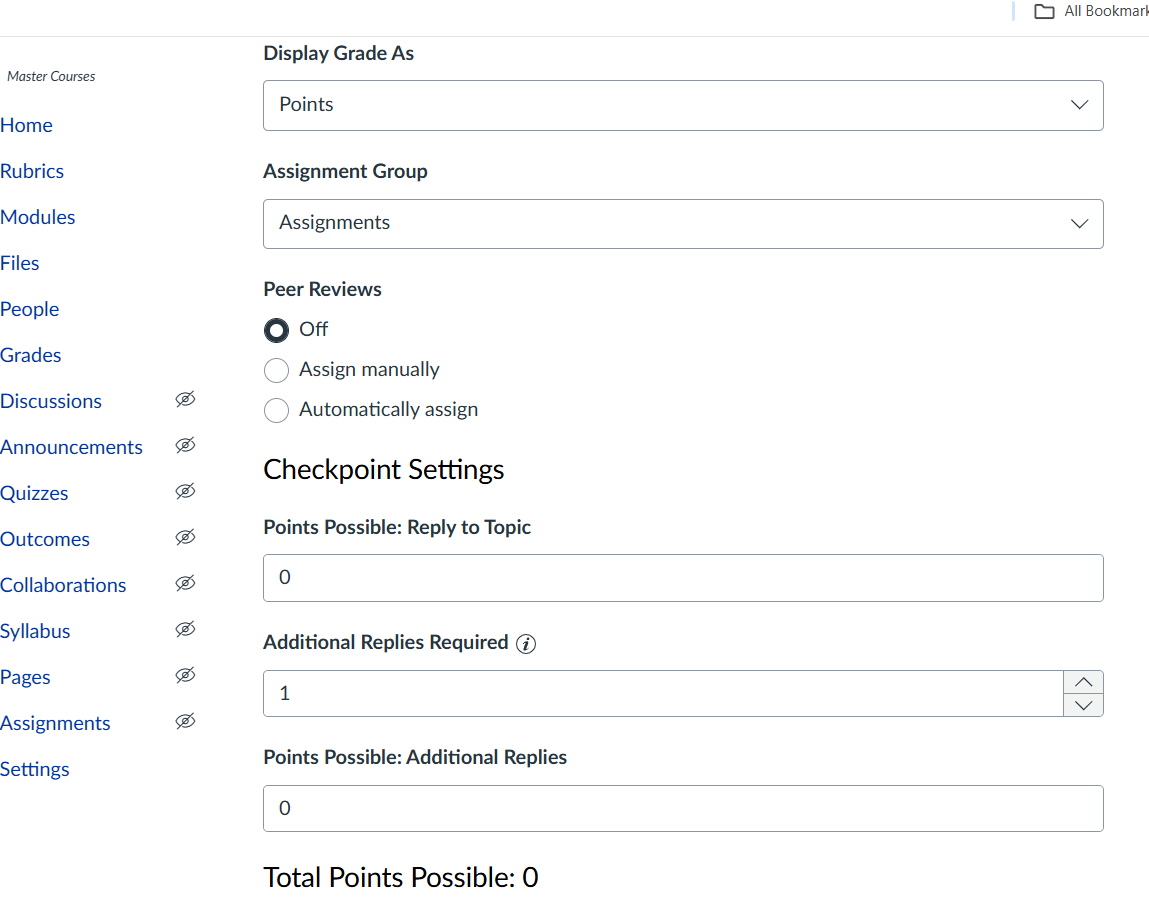
In Checkpoint Settings, enter:
- Points Possible
- Additional Replies Required
- Points Possible for Replies
-
In Assignment Settings, set due dates and times for the initial post and replies.
-
Complete the rest of the discussion setup and click Save or Save & Publish.
-
After students complete their posts and replies, use SpeedGrader to review participation and grade each checkpoint separately.
Canvas will track whether students completed the required number of replies automatically.